

FAQs






Account Management
My account & preferences
How can I change my password?
- Log into your Digital Boost Dashboard
- Head to ‘Account’
- Select ‘Data & Privacy‘
Update your password as needed 😊
How do I delete my Digital Boost account?
We’re sorry to see you leave us! Remember we’re always here to support you and your business, so if you ever want to come back in the future – we’ll be here for you!
If you’re sure you wish to permanently delete your account (and all related data) simply log into your Digital Boost Dashboard, head to ‘Account’ > ‘data & privacy’ and select ‘delete account’.
How can I unsubscribe from your emails or change my email preferences?
To unsubscribe or change your email preferences:
- Log into your Digital Boost Dashboard
- Head to your Account
- Select ‘Data & Privacy‘ and update your preferences as needed
Accessibility
Why are you asking for disability/accessibility information?
Digital Boost has partnered with Small Business Britain and Lloyds Bank to formalise and improve support for entrepreneurs with disabilities.
The Lilac Review highlighted the need for mentoring focused on the unique needs of Disabled entrepreneurs, specifically by mentors with lived experience or expertise in supporting Disabled entrepreneurs.
Through our platform, mentees and mentors can now share information about disabilities, neurodiversity, and/or long-term health conditions and we can match them with support from others with similar lived-experiences.
Is sharing accessibility information mandatory?
No, sharing this information is completely optional. You can choose to add, update, or remove this information at any time from your profile by clicking here.
How will my disability/health information be used?
The information will be used primarily for matching mentors and mentees with similar lived experiences. You can control your privacy settings to decide whether this information is publicly visible or used only for background matching.
This doesn’t mean you’ll only be matched with members with this experience, but we’ll prioritise matching you with that support where we can 😊
What if I have more suggestions about accessibility or support?
The Lilac Review has shown our industry how much more work there is to do. This is just the beginning for us!
We’ll be continuing to improve our platform’s accessibility and we’d love your input! If there’s anything you need or think others would benefit from, please send us an email with your thoughts and feedback 😊
Platform Tools ⚒️

Action Plans
How do I create an Action Plan?
To create an Action Plan:
- Head to your Dashboard and select ‘Action Plans’ from the menu
- Click ‘Add Plan’
- Create a title for your Plan and then start adding tasks!
How do I add tasks to my Action Plan?
Click on the plan name that you’d like to add tasks to
Head to the ‘to do’ section and click ‘add task’
Give your task a name and deadline and hit save!
Do I have to set a deadline for my Action Plan and tasks?
No don’t worry! Deadlines aren’t required to create a task or plan BUT we do strongly recommend setting deadlines if you can to keep yourself accountable
What does 'permission owner' mean for an Action Plan?
Woohoo we’re so excited you’re ready to request your first 1:1 mentoring session with our community.
Here’s how to get your first session booked in:
- Click ‘mentoring’ from your Dashboard
- Select the topics you’d love help with from the selection bar
- You can browse our list of mentors and choose your preferred mentors, but we recommend using our Quick Match feature so that we can match you with the best mentor for your request!
- Click ‘next’
- Tell us what support you need – be as specific as possible so that our mentors know what support you need
- Select your knowledge level on the topic
- Let your mentors know if there’s any accessibility requirements you have for the session
- Click ‘Tell us when you can meet’
- Tell us your availability throughout the week – the more availability you give, the more chance we have of matching you!
- Click ‘submit’!
We’ll then send your request to our mentors and we’ll let you know if anyone can make the times you’ve selected!
Who can I share my plans with?
You can share your plans with any members that you’ve met with through the Digital Boost platform.
How do I delete a plan?
To delete an Action Plan, just navigate to the ‘bin’ icon.
Live Events
How can I see upcoming live events?
You can see all upcoming events here, hit register to save your spot.
How can I add a live event to my calendar?
Once you have registered for a live event, you will see an ‘add to calendar’ button appear. Click there to add straight to your personal calendar.
Or alternatively, you can add it to your calendar from the email you will receive after signing up.
How can I see the recording from the live session?
You can see all the replays from live events you have registered for here on your dashboard, they will be uploaded to the dashboard 24 hours after the live session.
If you cannot attend the session live after registering, you will stil have access to the replays when they are uploaded.
How can I submit a question to the host?
After registering for the live event, you will see the ‘Ask a Question’ button appear, you can pop your question in there for the mentor to answer on the day.
Can I book a 1:1 mentoring session with the host of a live session?
Yes, you definitely can!
Find the mentor on the platform, and submit a request to meet with them!
File Sharing
What is My Library and what is the storage limit?
Your Library is a bit like Google Drive. You can use it to store all of the files you need for your mentoring sessions.
As there’s a storage limit on your Library, we recommend only uploading files there that you regularly send to mentors.
For example, you might like to upload your business plan or pitch deck in your Library so that you have it to hand if you want to send it to any mentors that you meet with!
As we’re a free service, we have a storage limit on your Library. Right now, you can store a total of 50MBs in your Library.
There’s a handy storage bar at the top of your library which will show you when you’re close to the limit! To free up more space in your Library, we recommend deleting files when you’re not using them 😊
Why is there an error message saying the other user's Library is full?
When you send an attachment via our Messaging Centre, it will be saved in the recipient’s Library for them to view.
If their library is full, you will not be able to send the attachment (an error will notify you).
If your mentor’s Library is full, you won’t be able to receive an attachment from other users until some space is freed up. It’s the same way when someone’s inbox is full they can’t receive your emails!
How can I send a file via message?
- Head to your Messaging Centre.
- Click the paper clip icon in the bottom left-hand corner
- Choose whether you’d like to upload a file from your computer or from your Library
- Select the file you’d like to upload
- Click ‘attach’
- Hit the send arrow and your attachment will be sent!
Learners

Mentoring sessions
Is there a limit to how many sessions I can have?
No! Our mentoring is totally unlimited, so you can have as many sessions as you need 😊
How soon can I speak with someone?
Straight away! As soon as your account is activated, you can start requesting sessions with our mentors.
Who will be mentoring me?
All our mentors are volunteers and come from a huge range of backgrounds! We have volunteers who join us from corporate companies like NatWest, Visa and BT as part of their volunteering programmes. But we also have lots of mentors who run their own businesses and want to help other founders to build successful businesses.
This means that you’ll always have a wide range of experts to meet with who will all bring valuable support and guidance as you progress through your business journey!
How do I book a 1:1 mentoring session?
Woohoo we’re so excited you’re ready to request your first 1:1 mentoring session with our community.
Here’s how to get your first session booked in:
- Click ‘mentoring’ from your Dashboard
- Select the topics you’d love help with from the selection bar
- You can browse our list of mentors and choose your preferred mentors, but we recommend using our Quick Match feature so that we can match you with the best mentor for your request!
- Click ‘next’
- Tell us what support you need – be as specific as possible so that our mentors know what support you need
- Select your knowledge level on the topic
- Let your mentors know if there’s any accessibility requirements you have for the session
- Click ‘Tell us when you can meet’
- Tell us your availability throughout the week – the more availability you give, the more chance we have of matching you!
- Click ‘submit’!
We’ll then send your request to our mentors and we’ll let you know if anyone can make the times you’ve selected!
Request a mentoring session
What is the average response match time from submitting requests to having a confirmed session booked?
Most requests will get an initial response within 2-3 working days. However, as all of our mentors are highly-engaged volunteers, it may occasionally take us a little longer to find the perfect match for your specific request.
Rest assured, you will always be notified as soon as a mentor has accepted your request, and your session will then be scheduled! To ensure every session is high-quality and the mentor has adequate time to prepare, we implement a 48-hour buffer for booking all sessions.
What if a mentor I selected doesn't accept my request?
As all of our mentors are volunteers, they will only have a certain amount of time each week to fulfil 1:1 requests.
As a result, on some occasions the mentor you’ve selected may not be able to meet you for a 1:1. If this happens, we’ll try our best to match you with another one of our amazing mentors so that you can get the support you need quickly.
If you only want to be matched with the specific mentors that you’ve selected as your ‘preferred’ mentors, you can turn off mentor substitution here. Doing this can reduce your chances of being matched and getting the support that you were looking for, so we don’t recommend this option but the choice is always yours 🤗
I requested a call with a specific volunteer, but I was matched with someone different. What happened?
We always try to match you with your preferred mentors, however, as our mentors are all volunteers, they won’t always have the time each week to help everyone!
If the volunteer you selected is not available, or does not respond to your request in time, we’ll send your request to other experts and see who can help.
If you prefer not to be matched with alternative mentors in these instances, please let us know by heading to your Account Preferences and selecting ‘no’ on mentor substitution.
If we’ve scheduled a session with someone you don’t want to meet with, simply press the cancel button.
How can I turn off mentor substitution?
Simply:
- Log in and head to your Account preferences
- Select ‘Mentoring Preferences’ → Matching with Mentors
- Change your preference to “No, I do not which to accept alternatives to those I picked.”
We’ll then only send your requests to the specific mentors you select 😊
How do I join a 1:1 mentoring session?
To join a 1:1 mentoring session at the scheduled time, simply press the “Join Call” button in your Dashboard or email.
As all our sessions are done via video call, you won’t receive an incoming call! So please join your call at the time of the session and your mentor will meet you there.
I have a confirmed call but need to reschedule/cancel. What do I do?
If you need to reschedule a call you have booked, it’s no problem!
Simply:
- Find the session you need to reschedule on your Dashboard
- Select ‘Cancel/reschedule’ and click ‘reschedule’
- Select a new date and time
We’ll then send your reschedule request to your mentor. If they’re able to accommodate the reschedule request, you’ll be notified that the call has been successfully rescheduled 😊
If you don’t receive confirmation of the reschedule, please assume that the call will go ahead at the original time unless you choose to cancel the call.
How can I add my 1:1 to my calendar?
Once your 1:1 session is confirmed with your mentor, it is super easy to add it to your preferred calendar (like Google Calendar, Outlook, Apple Calendar, or others)!
You should see a button in the confirmation email we send you, as well as on your Digital Boost dashboard under the ‘Upcoming Sessions’ area. This will let you download the calendar file) that you can click to automatically add all the session details straight into your personal calendar!
Can I record my mentoring session?
For your 1:1 mentoring sessions, the valuable advice and discussions you have are intended to be just between you and your dedicated volunteer mentor. Mentors are not expected or required to record sessions, but if you feel strongly that you would like the session recorded, please mention this to your mentor ahead of the session. Both parties must consent in order for the recording to go ahead.
Can I meet with the same person again?
Yes. If you’ve had a great call with a volunteer and would like to meet with them again, simply head to your Messaging Centre, find their chat and click ‘request follow-up call’ in the right hand corner.
Can I search for a specific mentor or for people from a particular company?
No, right now we don’t allow this – this is so that we can protect the privacy of our volunteers.
But you can easily browse our mentor select page and find incredible mentors to connect and speak to!
Is it possible to be matched with someone local to me?
Yes, it is possible to be matched with a mentor who is local to you! If you have the location-based matching feature active on your profile, you will be suggested mentors considering geographic proximity.
How do I get matched with someone in my local area?
Ensure you are sharing your location here, and then go to submit a mentoring request. You will see the checkbox option to be shown mentors in your local area first under your chosen topic, from there you can request a session like normal.
How can I update my location?
You can update your location via your Dashboard here.
Can I opt out of sharing my location on my profile?
Yes, you can opt out of sharing your location by going to data & privacy via your Dashboard, and toggling off the location under ‘information shown to other users.’
Can I meet in-person if I'm matched locally
At the moment, all our mentoring sessions are delivered virtually through our platform. Digital Boost does not currently offer the option to organise an in-person mentoring session through the platform (although we may offer this option in the future!).
However, some mentors in long-term mentoring relationships may offer the option to meet in-person on occasion. As in-person mentoring sessions are not offered through the Digital Boost platform, in-person meetings are held at the risk of the individual members. We recommend being mindful of your safety and privacy if you do choose to organise an in-person meeting.
Attendance, feedback and cancellations
How do I confirm my attendance at a mentoring session?
You’ll receive an email confirmation when a mentor has booked a call with you. In this email, there will be a button you can click to confirm your attendance at the session 😊
Alternatively, when you log into your Dashboard, you’ll see the option to confirm your attendance at any upcoming mentoring sessions.
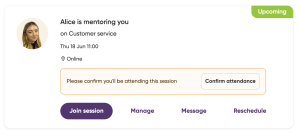
Why do I need to confirm my attendance at a mentoring session?
All our mentors are volunteers, so when they volunteer to support you with a session, we ask that you confirm your attendance so that they can prepare accordingly.
What happens if I don't confirm my session?
If you don’t confirm your session, your session will still go ahead as planned. However, some volunteers may choose to cancel your session themselves if you haven’t confirmed your attendance to protect their time. So it’s really important you confirm as soon as you can!
I've confirmed my attendance but I now can't attend, what should I do?
If anything has changed, please cancel or reschedule your session as soon as possible.
If the session isn’t cancelled but you don’t attend, you may lose access to our mentoring support.
How can I leave feedback for my mentor?
Once you’ve finished a session, Digital Boost will send you a short feedback form to fill out on your Dashboard.
You’ll be asked to rate your mentoring experience and leave a comment about the session.
You can choose to keep this anonymous and any really lovely comments we share with your mentor on their Dashboard to let them know they did a great job!
You’ll be asked for feedback after every session and we’d really appreciate it if you could always try and respond each time as it helps our mentors to improve and us to keep developing our services.
What happens when I share feedback?
Once you’ve shared your feedback on the site, we’ll review it and display any amazing feedback for the mentor on their Dashboard so they can see what a great job they did!
If you asked us to share your feedback anonymously, your name won’t be displayed when the mentor sees the feedback.
If you’ve left constructive feedback for the mentor, the team delivers this kindly to the mentor so that they can improve for future sessions.
My mentor didn't show up! What shall I do now?
We are truly sorry to hear that the volunteer was not able to join the call.
If you’re still on the call, you might want to try sending them a message via your Dashboard to let them know you’re there.
If they still don’t show, please let us know by using the feedback form on your Dashboard under the tab ‘Completed‘.
From there you can select ‘Leave feedback for the Volunteer, select 0 and check the first checkbox ‘The mentor did not show up’.
We’ll then contact your mentor to find out what happened and see how we can support both you and the mentor.
How can I see feedback from my mentors?
You can see all your feedback here!
How can I see the progress I'm making?
You can see all your progress stats here!
Account preferences
How can I change what I need help with?
Simply head to ‘Skills’ on your Dashboard and then you can select/unselect topics to update your preferences. Make sure to hit save before you finish so we can update your profile!
How do I update my profile?
Simply log in to your account and select ‘Account’ > ‘profile‘. You’ll be able to update your profile and settings there!
Can I apply to become a Mentor?
Yes, you definitely can apply to be a volunteer mentor and share you knowledge with the community. To apply, go to your dashboard > account > ‘become a mentor’.
Add the topics you can help with, and your availability – we will review our application and be in touch! 🚀
Mentors

Support and training
How long does your approval process take?
We review all mentor applications and aim to approve all our volunteers within two working days of applying 😊 You’ll be notified when your application has been successful.
To speed up this process, please ensure:
- Your profile picture is clear, professional, and isn’t a logo for your business/company
- Your ‘about me’ section includes relevant information about you and your experience
- There’s no personal contact information or sales pitches in your ‘about me’ section
Do you have a mentor training course?
Yes we do! You can start our training here 😊
Do you have any resources to help me plan my sessions?
Yes we do! Try using our Cheat Sheets to plan your mentoring sessions 😊
How can I host a live session?
Step 1: Become a Mentor! You’ll need to sign up to become one of our expert volunteers. This involves filling out a quick form to tell us about your expertise and experience.
Step 2: Get confident mentoring: we encourage you to start by trying your hand at 1:1 mentoring sessions. This is a great way to engage with founders and share your specialist knowledge.
Step 3: Masterclass Invitations: Once you have hosted several successful 1:1 mentoring sessions, you will be considered for opportunities to move beyond individual support and host small group Masterclasses or Workshops on your specialist topic.
If a Masterclass opportunity arises for which you are a good fit, you will receive an invitation on your Mentor Dashboard to participate.
Can I add a learner profile to my account?
Yes, of course. We encourage all our mentors to learn as well as teach. To do so, go to the dashboard and your account, find ‘become a learner’. Add the information about you and hit submit!
Mentor sessions
How do I get requests for 1:1 mentoring?
When a mentee has requested a 1:1 mentoring session with you, you’ll receive an email and a notification on your Dashboard under ‘Requests‘.
Once you click through from your email or your Requests tab, you’ll be able to read about your potential mentee, learn more about their business and what they need help on and, in some cases, find out their ‘business health’.
Once you’ve assessed your mentee’s request you’ll be able to choose a date and time and then accept the session!
How long do I have to wait before I start getting requests for mentoring?
It all depends on what requests we receive from small businesses and charities! If you have skills in an area that’s high in demand at the moment, you’ll likely get a request pretty quickly.
Sometimes it might take a bit longer and if you’ve not received any after a few weeks of joining, check out our FAQ: ‘I’m not receiving mentoring requests, what should I do?’
I've received a request and I'm ready to accept! How do I do this?
- Select the date and time that you’d like to meet with your mentee
- Choose a call provider that you’d like to use to host your session. You can input your own Google Meets, Zoom or Microsoft Teams link OR we can create a free meeting link for you on Jitsi.
- Once you’ve confirmed your meeting link, click ‘accept request’
Your confirmed 1:1 will now show on your Dashboard and under ‘Bookings’!
We’ll also send you an email to confirm your session is all set up 😊
Top Tip:
Add your 1:1 session to your online calendar so that you get calendar reminders about your session!
I've received a request, but I can't help them this time - what should I do?
If a request has come through which you can’t make, simply select ‘decline’ and we’ll match the mentee with another mentor.
If you’re able to leave feedback about why you’ve decided to decline the request, it’ll help us to better match you in the future.
I've not received any 1:1 requests yet - what should I do?
If you’re not receiving mentoring requests right now, don’t worry!
Our community will have periods when they need lots of support and other periods when they don’t need so much. So don’t lose heart!
Here are a couple of things you can do to increase the chance of receiving new requests:
- Log in regularly – this pushes you to the top of our volunteering page
- Add/update your mentoring skills so we can match you with the right mentees
- Add a profile photo if you don’t have one already 😊
How do I add a confirmed session to my calendar?
When a session is confirmed, you will receive an email and notice on your Dashboard with all the call details.
Please note: the meeting is not automatically added to your calendar so make sure you press the “Add To Calendar” button in the email or on your Dashboard.
This integrates with all major calendars including Google Calendar, iCal and Outlook, and allows you to add this event to your online calendar!
When adding the meeting to your calendar, we recommend that you set a 24 hour and a 10 minute reminder.
If you need to cancel a session, please make sure to cancel through our platform, as cancelling an event in your personal calendar doesn’t cancel the event on our platform.
I have booked a call with a mentee but now need to reschedule it. What do I do?
If you need to reschedule a call you have booked, simply find the call on your Dashboard, click ‘reschedule or cancel this call’ and then select ‘reschedule’. You’ll then be able to propose a new time to your mentee.
We recommend chatting with your mentee first to let them know you’ll be rescheduling and to see if there’s a good time for you both to reschedule for.
I’m receiving too many requests. What should I do?
If you’re feeling overwhelmed by a lot of requests coming in – don’t panic!
It’s likely you’ve got skills in topics that are popular with our community 😊
We understand you’re busy, so please only accept requests that you’re comfortable fulfilling and fitting into your schedule.
Once you’ve accepted the sessions you’re able to help with, please make sure to decline the outstanding requests. Don’t worry, the mentee won’t be alerted that you declined their request! This just helps us to redirect their request to other mentors in the community who may have the capacity to support them on this occasion 😊
If you feel like you’re consistently receiving too many requests, you might like to reduce the topics you’re offering mentoring in and/or change the number of hours you have available to mentor.
How do I join a scheduled 1:1 mentoring session?
Simply log into your account at the time of the session and click the ‘join call’ button on the session! Alternatively, we’ll send you a reminder email on the day of your call so you can also click the ‘join session’ link in that email too 😊
Can I meet with the same mentee again?
Yes! If you had a great experience speaking to the small business or charity, and you would be happy to speak with them again, you can offer them a follow-up call.
After each call, you’ll be asked to provide feedback. If you rate the session a 9 or 10, you’ll get the option to offer a “follow-up” with the organisation, so they can book a second call with you.
This will send them a notification that you enjoyed speaking to them and that you’re open to a follow-up call should they need it.
Alternatively, you can share your profile with your mentee so that they can book with you directly! 😊
How do I get matched with someone in my local area?
Ensure you are sharing your location here, and then mentees requesting sessions based in your local area will be able to match with you.
At the moment, all our mentoring sessions are delivered virtually through our platform. Digital Boost does not currently offer the option to organise an in-person mentoring session through the platform (although we may offer this option in the future!).
How can I update my location?
You can update your location via your Dashboard here.
Can I opt out of sharing my location on my profile?
Yes, you can opt out of sharing your location by going to data & privacy via your Dashboard, and toggling off the location under ‘information shown to other users.’

Attendance, feedback and cancellations
What does the attendance status mean on my upcoming mentoring session?
When you book a mentoring call for our mentees, we ask them to confirm their attendance. This is to protect your time, and ensure that the mentee is aware of the session and planning to attend!
I have an upcoming session but the status is 'unconfirmed' - what should I do?
If the status is unconfirmed, please attend the session as planned. The mentee may be planning to attend, but may not have received our emails.
We advise not prepping for the call (unless you wish!) and not staying on the call for more than 5 minutes if the attendee doesn’t join the call.
What does my feedback mean?
Whenever a session is completed, you and your mentee will be asked to rate your experience and leave feedback. So all the feedback you can see on your Impact Dashboard is taken from real-life mentees and the feedback they gave you after their mentoring sessions 😊
It’s always a lovely feeling when you know you’ve made a difference to someone, so that’s why we wanted to display real-life feedback on your Dashboard – so you can always see what a great job you’re doing!
How do you count my sessions?
We use the number of ‘completed’ sessions and Masterclasses on our site to calculate how many mentoring sessions you’ve hosted for our community.
My mentee didn't show up! What shall I do now?
We are truly sorry to hear that the mentee was not able to join the call.
If you’re still on the call, you might want to try sending them a message via your Dashboard to let them know you’re there.
If they still don’t show, please let us know by using the feedback form on your Dashboard under the tab ‘Completed‘.
From there you can select ‘Leave feedback for the mentee’, select 0 and check the first checkbox ‘The mentee did not show up’.
We’ll then contact your mentee to find out what happened and see how we can support both you and the mentee.
Account preferences
How can I change my availability?
If your availability has changed, simply head to ‘Account’ > ‘availability’. You’ll be able to change the days and times you’re available there.
How to add and update mentoring skills on your volunteer profile
If you feel like you have new skills that you can mentor in, or you’d like to change some of the topics you originally selected, simply head to ‘Account’ > ‘skills’ and add/remove any interests!
I’m receiving too many requests. What should I do?
If you’re feeling overwhelmed by a lot of requests coming in – don’t panic!
It’s likely you’ve got skills in topics that are popular with our community 😊
We understand you’re busy, so please only accept requests that you’re comfortable fulfilling and fitting into your schedule.
Once you’ve accepted the sessions you’re able to help with, please make sure to decline the outstanding requests. Don’t worry, the mentee won’t be alerted that you declined their request! This just helps us to redirect their request to other mentors in the community who may have the capacity to support them on this occasion 😊
If you feel like you’re consistently receiving too many requests, you might like to reduce the topics you’re offering mentoring in and/or change the number of hours you have available to mentor.
Data & Privacy
Where can I find your terms and conditions?
You can find our terms and conditions here.
What are the Community Guidelines?
Digital Boost is a community built on a foundation of respect, professionalism, and support. We expect all members – whether you’re a small business, charity, or a volunteer mentor – to treat each other with courtesy and to uphold the following core values:
- Be Respectful and Kind: Treat everyone in the community with courtesy. We have a zero-tolerance policy for harassment, discrimination, or abusive language.
- Be Prepared: If you are a mentee, make sure you show up to your session on time and have thought about your challenges. If you are a mentor, be ready to share your expertise and insights to help the mentee thrive.
- Maintain Professionalism: All interactions, including 1:1 sessions and Masterclasses, should be conducted professionally.
- No Selling: Our volunteer mentors generously give their time pro bono (for free). Mentors agree not to sell their services to mentees, and mentees should not expect or ask for free, ongoing work outside of the session. The focus is purely on free, high-quality advice and learning!
By joining Digital Boost, you are agreeing to these values and helping us keep our community a wonderful place to learn and grow. If you have any concerns about interactions, you can always flag them with our team!
Where can I find your privacy policy?
You can find our Privacy Policy here.